
26.2 Major Release
Clear Browser Cache
To ensure you are viewing the very latest of this website, best practice is to clear your browser's cache, especially after any major releases. For instructions on clearing cache, visit a link below for the browser you are using:
- Important Notices
- Encompass Software Development Kit (SDK)
- Encompass Documents APIs
- Encompass Loan APIs
- Webhooks
- Breaking Changes
- Deprecation and Sunset Notices
- Guides
- Loan Schema Changes
- Postman File Updates
IMPORTANT NOTICES
New Login Screen for Encompass Products
All Encompass products now utilize a new single, unified web-based login page that is more consistent with the current Encompass desktop interface login experience. Products like the Encompass web interface and Encompass Consumer Connect that previously used a two step login process (where a user entered their instance, and then navigated to a new screen to enter their user credentials) now use a single consolidated login page. The new Encompass login page looks like this:
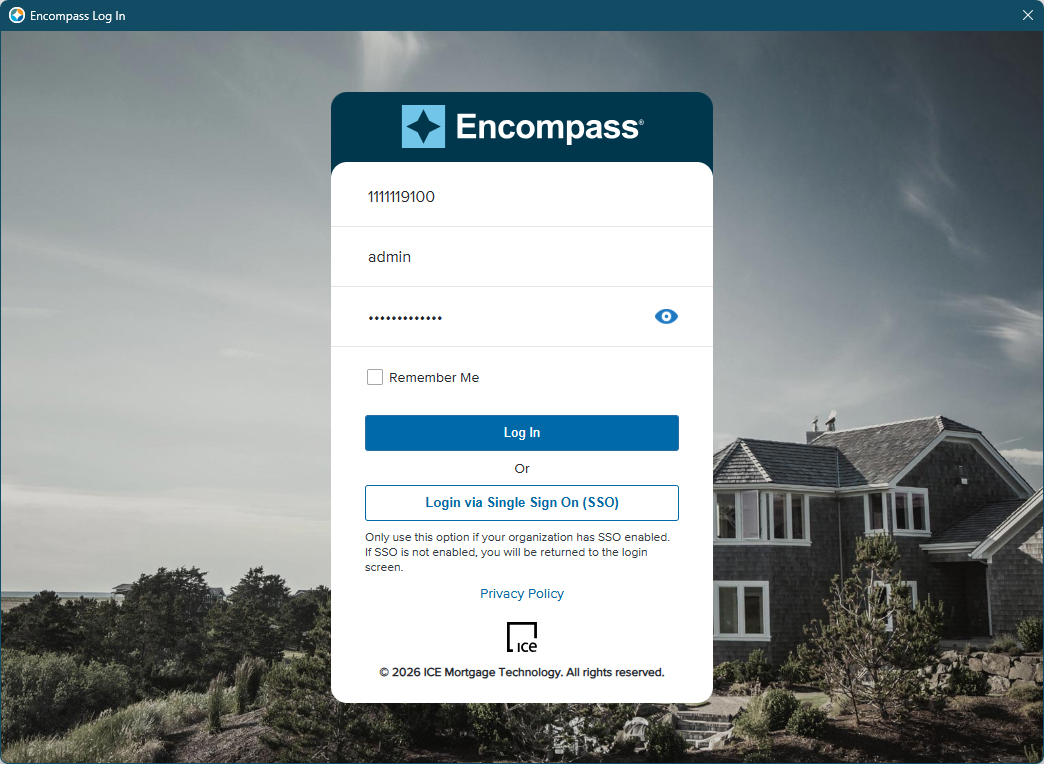
When logging into other Encompass products (listed below), the same log in screen is provided. Depending on which product you are logging into, there may be some minor differences in the login screen related to the SSO button (discussed below) and the name of the product displayed at the top of the login screen may differ.
Note that users now enter their instance ID, user name, and password on the same screen.
The Login via Single Sign On (SSO) button is now displayed for all products that support SSO (with the exception of Encompass Data Connect, Partner Marketplace, and Insights), regardless of whether the instance has SSO enabled.
- If SSO is not enabled in Encompass desktop interface, users entering an instance ID and then clicking this SSO button will receive a No company associated with this Instance ID message. This is the same message and user experience provided in earlier versions of Encompass desktop interface.
- If SSO is not enabled in other Encompass web applications, users entering an instance ID and then clicking this SSO button will see the screen refresh without any error messages on the user interface.
- If SSO is enabled and the user is restricted to log in using SSO only, an error message is returned if they attempt to log in with a user name and password. The message instructs the user to log in using SSO.
There is no impact to users who bypass Encompass login pages entirely. (For example, users launching Encompass from enterprise landing pages and federating directly.)
This new login screen is now used for the following products:
- Encompass (desktop and web interface)
- eFolder (when accessing the eFolder in the web interface from the Encompass desktop interface)
- Encompass Consumer Connect Admin Portal
- Encompass Data Connect (no SSO button will be displayed)
- Data Insights (no SSO button will be displayed)
- Encompass Developer Connect (This new login screen is used for the My Account > API Key, My Account > SAML SSO, and My Account > Lender MFA screens inside the Encompass Developer Connect portal only.)
- Encompass eVault
- Encompass LO Mobile App
- Encompass TPO Connect Admin Portal
- Encompass TPO Internal User Access
- Encompass Partner Marketplace (no SSO button will be displayed)
- ICE PPE
PRCM-1141
Updates for Single Sign-On (SSO) and Multi-Factor Authentication (MFA) Settings
MFA Now Enabled for Additional Connect Products
MFA is now available to enable for Connect products that previously did not enforce MFA. The following Connect products now support and enforce MFA when enabled in Encompass Admin Tools:
- Encompass Data Connect
- Encompass Developer Connect
- Encompass TPO Connect Internal Login
- Encompass TPO Connect Admin Portal
When MFA is enabled for these Connect products, users are required to authenticate to their corporate network by providing a user name and password, and then by providing a pin or code from their smartphone or device. Once authenticated, then they can proceed into their Connect product.
Supported MFA Providers:
The Encompass Lending Platform continues to support MFA using PingID, Okta Verify, or Duo Mobile identity providers.
Enabling MFA for Connect Products:
Use the Encompass Admin Tools > Server Settings Manager to enable (or disable) MFA for these Connect products.
To Enable MFA for Connect Products:
-
On your Windows task bar, click the Start menu or Start icon, navigate to the ICE Mortgage Technology program folder, and then click Admin Tools.
-
Double-click Settings Manager.
- If you are prompted to log in to the server, type the User ID, Password, and Server that you use to log in to Encompass as the Super Administrator or the user assigned with the admin user ID.
-
Select Password from the Category list.
-
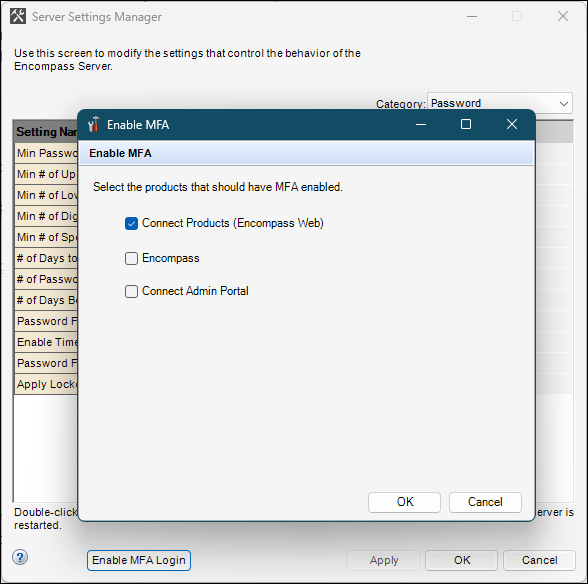
Click the Enable MFA button.
-
Select the Connect Products (Encompass Web) check box. (If this check box was already selected from a previous version of Encompass, then it does not need to be selected again. MFA will be applied to the additional Connect products (along with the Encompass web interface).)
You cannot selectively opt in or opt out of applying MFA for specific Connect products. If you select this Connect Products (Encompass Web) checkbox, then MFA is applied to the Encompass web interface, Encompass Data Connect, Encompass Developer Connect, Encompass TPO Connect Internal Login, and the Encompass TPO Connect Admin Portal. If this checkbox is not selected, then MFA is not applied to any of these products.
-
Click OK.
MFA is now enabled for these additional Connect products by default when using the PingID MFA service provider. ICE Mortgage Technology has configured PingID as your default provider. If you are using custom MFA service providers Okta Verify or Duo Mobile, please note that you must also configure your MFA service provider and the required settings in the Lender MFA settings in the Encompass web interface Admin portal to complete MFA enablement. Refer to the SSO and MFA Settings Moved to Encompass Web Interface entry below for more information.
Refer to the How to Set Up MFA for Encompass guide for information about setting up MFA for these Connect products (as well as additional products already supported for MFA (Encompass (desktop and web interfaces) and the Encompass Consumer Connect Admin Portal)).
PRCM-1141 / EDC-1269
SSO and MFA Settings Now Available in Encompass Web Interface
Prior to Encompass 26.2, administrators managing their company's Single Sign-On (SSO) and Multi-Factor Authentication (MFA) setup and preferences utilized the setup screens located in Encompass Developer Connect. With this Encompass 26.2 release, these settings are now also provided in the Encompass web interface's Admin portal. (These settings in the Encompass web interface's Admin portal can also be accessed from settings in Encompass desktop interface). Existing setup and configuration settings are not impacted by this move, so administrators are not required to reconfigure their existing SSO and MFA setup.
The SSO and MFA settings are still provided in Encompass Developer Connect as well. These settings will be removed in a future Developer Connect release.
Managing SSO and MFA Connections in Encompass Web Interface
After the administrator has configured their IdP (Identity Provider) and collected the XML metadata file from the configuration, they can visit the SAML/SSO Setup page or the Lender MFA page in the Encompass web interface Admin portal to set up a new SSO or MFA connection or modify existing connections.
SSO Connections
You can create up to 10 connections SSO connections on the SAML/SSO Setup page, but only one can be active at a given time for a given application. You cannot have two connections for Encompass activated simultaneously. However, you can have a connection for Encompass desktop interface and a connection for Encompass web interface activated at the same time.
To Set Up the SAML SSO Connection in Encompass Web Interface:
-
Log into the Encompass web interface with Super Administrator credentials or with the admin user ID.
-
One the left panel in the Admin portal, click Company/User Setup, and then click SAML/SSO Setup.
-
On the SAML/SSO Setup pop-up screen, the existing SSO connections are listed. There you can click the Add (+) icon to create a new connection.
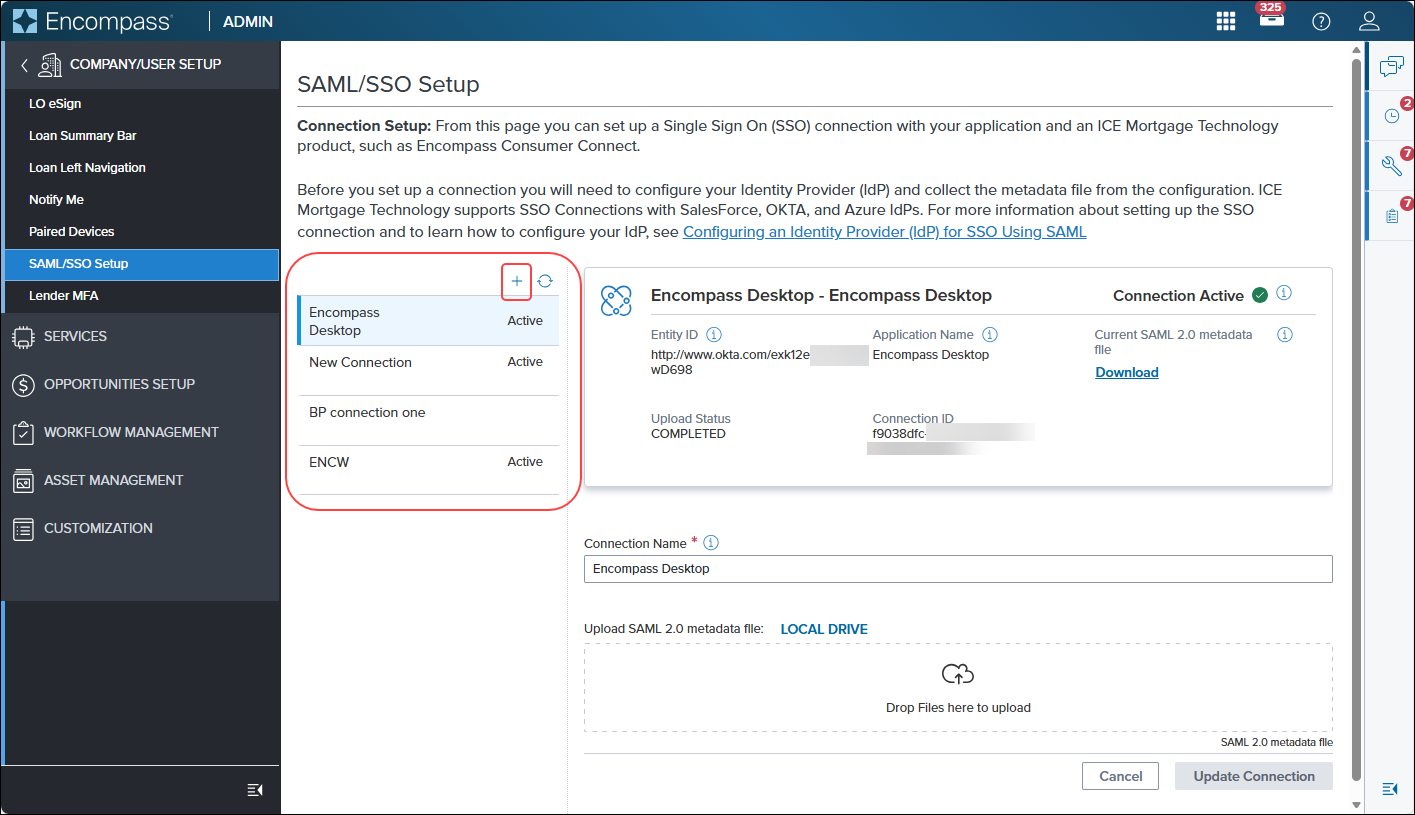
For existing connections, administrators can edit the Connection Name field and upload a new metadata file.
MFA Connections
The Encompass Lending Platform supports MFA using PingID, Okta Verify, or Duo Mobile identity providers.
To Set Up the MFA Connection in Encompass:
-
Log into the Encompass web interface with Super Administrator credentials or with the admin user ID.
-
On the left panel in the Admin portal, click Company/User Setup, and then click Lender MFA.
-
On the Lender MFA page, select the MFA provider you would like to use.
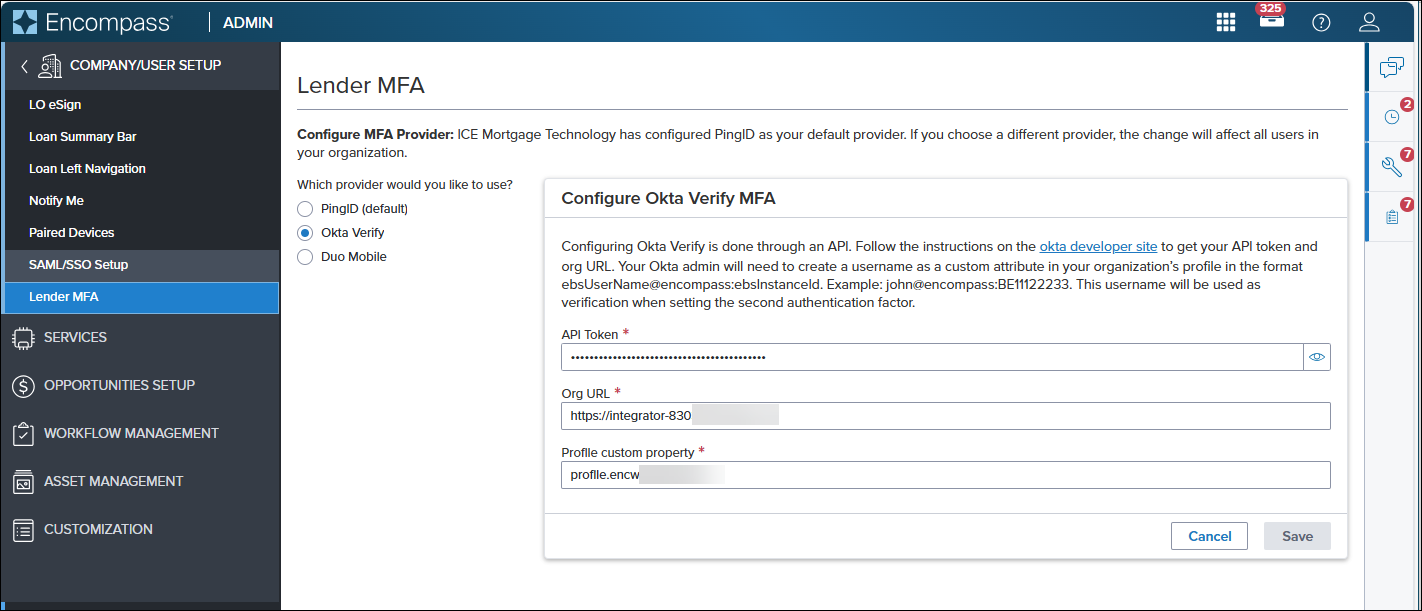
If the MFA connection has already been configured, the required information is displayed in the associated fields. Here administrators can modify existing connection information or enter new connection information.
Managing SSO and MFA Connections via Encompass Desktop Interface
After the administrator has configured their IdP (Identity Provider) and collected the XML metadata file from the configuration, they can visit the SAML/SSO Setup page or the Lender MFA page in the Encompass web interface from the Encompass Settings to set up a new SSO or MFA connection or modify existing connections.
To Set Up or Access the SAML SSO Connection from Encompass Desktop Interface:
-
Log into the Encompass desktop interface with Super Administrator credentials or with the admin user ID.
-
On the menu bar in Encompass, click Encompass, and then click Settings.
-
On the left panel, click Company/User Setup, and then click Company Information.
-
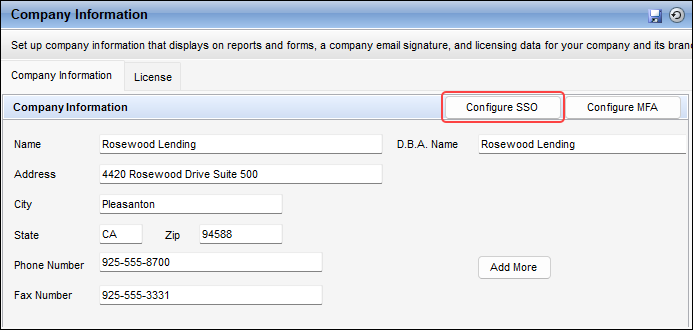
On the Company Information tab, click the Configure SSO button.
-
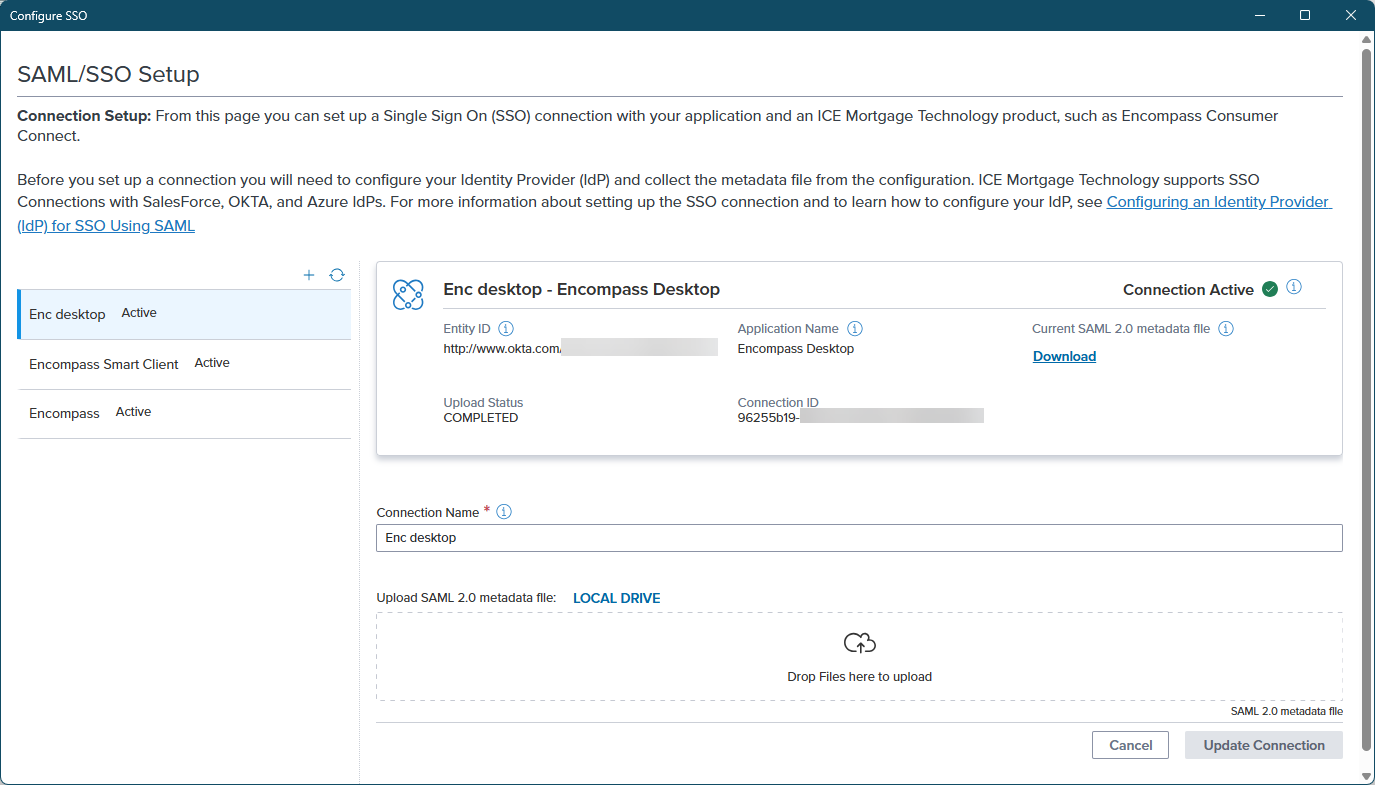
On the SAML/SSO Setup pop-up screen, administrators can set up an SSO connection or edit an existing SSO Connection.


To Set Up or Access the MFA Connection from Encompass Desktop Interface:
-
On the menu bar in Encompass, click Encompass, and then click Settings.
-
On the left panel, click Company/User Setup, and then click Company Information.
-
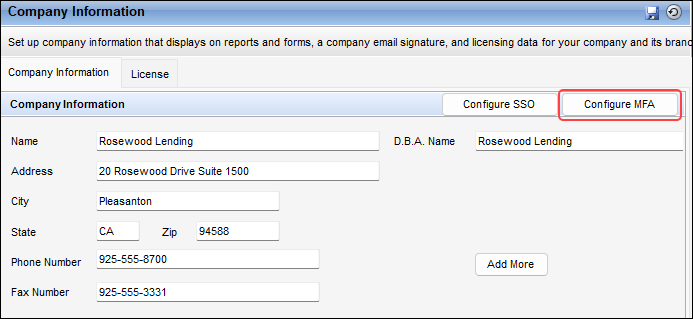
On the Company Information tab, click the Configure MFA button.
-
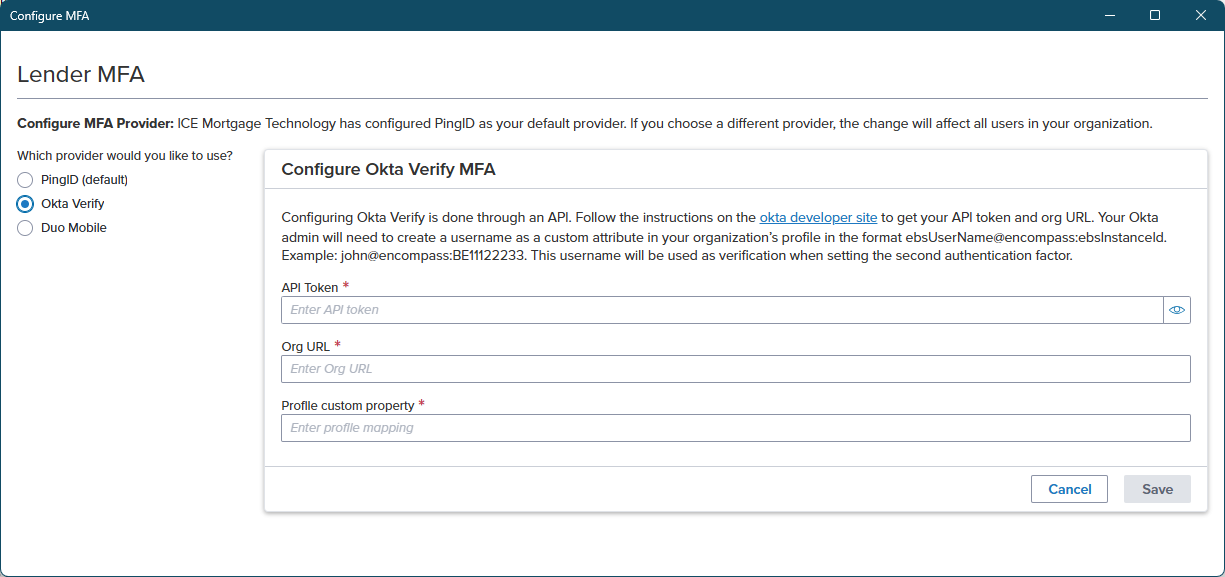
On the Lender MFA pop-up screen, administrators can set up an MFA connection or edit an existing MFA Connection.
Refer to the Setting Up Single Sign-On for Encompass guide or the How to Set Up MFA for Encompass guide for complete and detailed instructions for creating or managing SSO or MFA connections in the Encompass web interface Admin portal.
The SSO and MFA settings will be removed in Encompass Developer Connect as part of the 26.3 release.
NICE-57110, PRCM-874, PSS-92414
ENCOMPASS SOFTWARE DEVELOPMENT KIT (SDK)
SDK to API Transition Deadline Change
The deadline to transition from legacy Encompass SDK (Software Development Kit) integrations to APIs (as previously announced in the 25.2 release notes) has changed. Please see the latest deadline information published in the official Encompass SDK Transition page.
ENCOMPASS DOCUMENTS APIs
New Attributes Added to Generate Document Package APIs (update)
The response contracts for the following Generate Document Package APIs have been enhanced to include new attributes documentTitle and displayName. These attributes enable you to provide user-friendly document titles and names; especially helpful for separate document flows.
- Get Opening Doc Set
GET /encompassdocs/v1/documentOrders/opening/{orderId}/documents/{jobId} - Get Closing Doc Set
GET /encompassdocs/v1/documentOrders/closing/documents/{jobId}/{orderId} - Get Opening Order Status
GET /encompassdocs/v1/documentOrders/opening/{orderId} - Get Closing Order Status
GET /encompassdocs/v1/documentOrders/closing/{orderId} - Get a Print Order
GET /encompassdocs/v1/documentOrders/ondemand/{orderId}
EDC-1282
ENCOMPASS LOAN APIs
New Amortization Schedule Calculator API (new)
The following new Amortization Schedule Calculator API has been added that enables you to calculate and return detailed amortization payment schedules. The schedule can be provided in the context of a loan, or payment schedule scenarios can be provided by passing the V3 Loan object in the request payload. The API supports the following scenario types: ActualCase, BestCase, and WorstCase. In addition, the API supports Complete and Yearly schedule formats, providing comprehensive payment breakdowns including principal, interest, mortgage insurance, and balances over the loan term.
- V3 Amortization Schedule Calculator
POST /encompass/v3/calculators/payments/amortization
EDC-1153
New Assign Tracking Status Access Rights Capability for Enhanced Conditions (update)
The following API has been enhanced to enable a Tracking Owner of an Enhanced Condition to extend any tracking status access rights they currently have to another owner/role. This allows roles that are not listed as Tracking Owners, within the Condition Type Settings, to update Tracking Statuses on the conditions that have been delegated to them.
- V3 Manage Enhanced Conditions
PATCH /encompass/v3/loans/{loanId}/conditions
Once a role has been delegated to manage Tracking Statuses, that means a user with that role can manage tracking statuses, using either of the following APIs:
- V3 Manage Tracking Entries
PATCH /encompass/v3/loans/{loanId}/conditions/{conditionId}/tracking - V3 Manage Enhanced Conditions
PATCH /encompass/v3/loans/{loanId}/conditions
EnhancedConditionContract has been updated with a new 'delegatedTrackingStatuses' collection. This collection identifies the Tracking statuses that have been delegated, and the additional delegated roles that can update them. This information can be retrieved in the following APIs:
- V3 Get All Enhanced Conditions
GET /encompass/v3/loans/{loanId}/conditions - V3 Get an Enhanced Condition
GET /encompass/v3/loans/{loanId}/conditions/{conditionId}
EDC-1284
New Scheduled Fulfillment Date for Disclosure Tracking APIs (update)
The following APIs have been enhanced with a new 'scheduledDate' attribute added to the fulfillment contract. This provides the ability to view the scheduled fulfillment date for disclosure packages.
- V3 Get a List of Disclosure Tracking Logs
GET /encompass/v3/loans/{loanId}/disclosureTracking2015Logs - V3 Get a Disclosure Tracking Log
GET /encompass/v3/loans/{loanId}/disclosureTracking2015Logs/{disclosureLogId}
EDC-1303
WEBHOOKS
New Webhook IP Addresses to Whitelist
ICE Mortgage Technology will be using the following new IP addresses for webhook APIs starting October 2026 for UAT and November 2026 for production. If ICE Mortgage Technology IP addresses are on your company’s whitelist of trusted sources, your information security or network admin team should add these new IP addresses to your whitelist by October 31, 2026 to avoid any disruption to services or integrations
New IP Ranges for UAT and Production
- 158.224.116.0/24
- 158.224.118.0/24
Timeline
- UAT migration - mid October
- Production migration - mid November
Actual cutover dates will be shared in a future communication.
Keep Current IP Ranges Whitelisted
The following IP ranges currently in place will stay intact.
Do not remove or change the following IP ranges in your Allow List until further notice.
- 35.171.144.152
- 54.88.179.33
- 18.189.140.207
- 16.58.38.117
- 54.147.100.150
- 35.171.234.41
- 3.141.95.93
- 52.14.87.76
For questions, please contact our ICE Mortgage Technology Support team.
New Status Query Option Available for Get Webhook Event APIs (update)
The following APIs have been enhanced to support a new “DeliveryFailedExhaustedRetries” status that can be used to retrieve webhook events that have failed delivery after all the retries have been exhausted. When the "status" query parameter is used, the response returns only event history records matching that status.
- Get All Events
GET /webhook/v1/events - Get an Event
GET /webhook/v1/events/{eventId}
The new query status is the following:
- DeliveryFailedExhaustedRetries - Delivery failed after the maximum number of retries have been exhausted.
EDC-1288
Update for Test Webhook Custom Auth Parameters API (update)
The following API has been updated to provide better security and additional error information:
- Test Webhook Custom Auth Parameters
POST /webhook/v1/functions/auth/{functionId}/test
The API endpoint now performs the following:
- On a successful 2XX response, the response body only returns the HTTP status code in the
tokenTestOKResponseobject. - Failure responses are now structured consistently with clear, actionable messages in a
tokenTestFailureResponseobject. Each failure response includes the following:- A human-readable
messagewith the token URL and error context. - An
errorCode(for network/TLS errors) orstatus(for HTTP errors).
See the new Usage Notes in the Test Webhook Custom Auth Parameters endpoint page for details regarding the Error Codes and Statuses that can return.
- A human-readable
EDC-1296
BREAKING CHANGES
Be sure to visit the Breaking Change Notices page to see a list of ALL breaking changes documented for past and future releases.
Breaking Changes for 26.2 Release
V3 Loan APIs to Return Custom Fields as "null" Instead of Empty
As of release 26.2, the responses on the following APIs are returning "null" instead of empty strings on Custom Fields when the 'includeEmpty' query is true and the Custom Fields have no value. This represents a breaking change to these APIs.
- V3 Get Loan
GET /encompass/v3/loans/{loanId} - V3 Create Loan
POST /encompass/v3/loans - V3 Update Loan
PATCH /encompass/v3/loans/{loanId}
EDC-1251 / EDC-1283
Fulfillment TrackingNumber Being Removed from the Fulfillment Object
Currently, the Disclosure Tracking GET APIs include a 'trackingNumber' attribute both at the fulfillment object and within each fulfillment.recipient object in the API response. The 'trackingNumber' under fulfillment.recipient was introduced in the December 2025 Service Pack 1 to support tracking numbers uniquely per recipient.
As of release 26.2, the 'trackingNumber' attribute at the fulfillment level has been removed, as it has been fully replaced by the per‑recipient 'trackingNumber' within fulfillment.recipient object. This update introduces a breaking change for the following APIs:
- V3 Get a List of Disclosure Tracking Logs
GET /encompass/v3/loans/{loanId}/disclosureTracking2015Logs - V3 Get a Disclosure Tracking Log
GET /encompass/v3/loans/{loanId}/disclosureTracking2015Logs/{disclosureLogId}
EDC-1280 / EDC-1285
Breaking Changes for 26.3 Release
Value for 'entityType' Change - External Organizations
In release 26.3, the value for the 'entityType' attribute in the 'parentOrg' and 'assignedToOrgs' objects of the External Organization contract will return as "ExternalOrg" instead of "Organization" to distinguish between an internal and external organization. This affects the following APIs:
- V3 Get External Organizations
GET /encompass/v3/settings/externalOrganizations/tpos - V3 Get External Organization
GET /encompass/v3/settings/externalOrganizations/tpos/{orgId} - V3 Create External Organization
POST /encompass/v3/settings/externalOrganizations/tpos - V3 Update External Organization
PATCH /encompass/v3/settings/externalOrganizations/tpos/{orgId}
EDC-1291
Piggyback LINK Attributes Changing to RetrieveOnly
In release 26.3, all Piggyback LINK attributes will be made RetrieveOnly (see Attirbutes list below). This change is needed to support the calculations that keep Piggyback loan data in sync as data changes between linked loans. Users should not directly update these attributes.
Notes:
- This change will not affect any Encompass calculations.
- This will impact integrations with Encompass Loan APIs (see Impacted APIs list below). Any integrations that update these attributes directly will be impacted. Starting with release 26.3, you will no longer be able to update these attributes. These attributes will only be updated through Encompass Piggyback automation.
- This change impacts the ability for any Encompass business rules to update these attributes. For questions regarding business rules configuration, contact your company's Encompass Administrator.
Impacted APIs:
- V1 Create Loan
POST /encompass/v1/loans - V1 Update Loan
PATCH /encompass/v1/loans/{loanId} - V3 Create Loan
POST /encompass/v3/loans - V3 Update Loan
PATCH /encompass/v3/loans/{loanId} - V3 Field Writer
POST /encompass/v3/loans/{loanId}/fieldWriter
Attributes:
| Property Name | Field ID | DataType | Field Requirements |
|---|---|---|---|
| LinkedLoanPurposeType | LINK_19 | string | RetrieveOnly |
| LinkedBorrowerRequestedLoanAmount | LINK_1109 | number | RetrieveOnly |
| LinkedIsConstructionPhaseDisclosedSeparately | LINK_4084 | boolean | RetrieveOnly |
| LinkedMortgageType | LINK_1172 | string | RetrieveOnly |
| LinkedLienPriorityType | LINK_420 | string | RetrieveOnly |
| LinkedInitialAdvanceAmount | LINK_1888 | number | RetrieveOnly |
| LinkedClosedEndPrimaryMortgageLoanAmount | LINK_4487 | number | RetrieveOnly |
| LinkedClosedEndSubordinateMortgageLoanAmount | LINK_4488 | number | RetrieveOnly |
| LinkedHelocNewFinancingNotLinkedDrawAmount | LINK_4489 | number | RetrieveOnly |
| LinkedHelocNewFinancingNotLinkedCreditLimit | LINK_4490 | number | RetrieveOnly |
| LinkedAmountApplyToDownPayment | LINK_4493 | number | RetrieveOnly |
| LinkedHELOCLienPosition | LINK_4494 | string | RetrieveOnly |
| LinkedLoanNumber | LINK_364 | string | RetrieveOnly |
| LinkedBaseLoanAmount | LINK_2 | number | RetrieveOnly |
| LinkedProposedOtherMortgagesAmount | LINK_229 | number | RetrieveOnly |
| LinkedProposedOtherAmount | LINK_234 | number | RetrieveOnly |
| LinkedProposedFirstMortgageAmount | LINK_228 | number | RetrieveOnly |
| LinkedMax5YrsPrincipleAndInterest | LINK_QM.X337 | number | RetrieveOnly |
| LinkedLenderName | LINK_1264 | string | RetrieveOnly |
| LinkedPaymentDeferredFirstFiveYears | LINK_URLA.X209 | boolean | RetrieveOnly |
| LinkedAffordableLoan | LINK_URLA.X210 | boolean | RetrieveOnly |
| LinkedRequestedInterestRatePercent | LINK_3 | number | RetrieveOnly |
| LinkedHelocQualifyingPaymentAmount | LINK_5025 | number | RetrieveOnly |
EDC-1298
Obsolete Properties Being Removed from Loan Contract
In release 26.3, the following properties are being removed from the loan.rateLocks section of the V1/V3 loan contract. These orphaned properties do not have corresponding field IDs in Encompass and do not exist on the loan.
-buySideStartingAdjPrice
-CompGainLossTotalBuyPrice
-CompSideInvestorStatus
-CompSideInvestorStatusDate
-CompSideDaystoExtend
-CompSideExtendedLockExpires
-CompSideLockExtendPriceAdjustment
-CompSideOriginalLockExpires
-CompSideRequestedBy
-CompInvestorCommitment
-CompSideMasterContractNumber
-CompSideInvestorTradeNumber
-CompSideTradeGuid
-CompSideTradeNumber
Because these properties are being removed from the V1/V3 loan contract, this is a breaking change if you are integrating with them using any of the following APIs. Ensure these properties are removed from any Encompass Developer Connect integrations prior to release 26.3.
- V1 Create Loan
POST /encompass/v1/loans - V1 Update Loan
PATCH /encompass/v1/loans/{loanId} - V1 Get Loan Schema
GET /encompass/v1/schema/loan - V3 Create Loan
POST /encompass/v3/loans - V3 Update Loan
PATCH /encompass/v3/loans/{loanId} - V3 Get Loan Schema
GET /encompass/v3/schemas/loan
EDC-1308
Breaking Changes for 27.1 Release
Removing Obsolete Rate Lock Entities
In release 27.1, the following entities are being removed from the Loan Contract:
- LockDenials
- LockConfirms
- LockRequests
- LockRequestBorrowers
- LockRequestAdjustments
These entities will now return as part of the 'RateLocks' entity. This change represents a breaking change to the following API endpoint:
- V3 Get Loan
GET /encompass/v3/loans/{loanId}
EDC-1286
DEPRECATION and SUNSET NOTICES
Be sure to visit the Deprecation and Sunset Notices page to see a list of ALL deprecations and sunsets documented for past and future releases.
Developer Forum Sunset
On June 25, 2026, ICE Mortgage Technology is sunsetting the Developer Forum site that was previously available to access under the Community menu and Table of Contents category of this Encompass Developer Connect (EDC) site. Therefore, the Community menu and Table of Contents category are being removed from EDC in release 26.2. The Blogs option that was also available under these Community options will be moved to reside under the Guides tab in a new Blogs category.
EDC-1290
Sunset of V1 eFolder Attachment APIs
As mentioned in previous release notes, a series of V1 eFolder Attachment APIs are scheduled for sunset in release 26.3. For more details and the alternative API endpoints to use, see Sunsetting V1 eFolder Attachment APIs in the Deprecation and Sunset Notices page.
EDC-1186
Sunsetting 'createAuthCode' Method
The 'createAuthCode' method previously announced as being deprecated with the 23.3 release, will be officially sunset in the upcoming 27.1 release. See the original deprecation notice for more details regarding the alternative getAccessToken() method that should now be used.
EDC-1300
GUIDES
The ICE Mortgage Technology Scripting Objects Reference page in the Encompass Customization Developer’s Guide has been enhanced to include more details regarding whether objects, methods and events are included in Encompass web versus Encompass desktop or both. A new callout also added that links to an Encompass Web Custom Form Toolbox guide available in the ICE Resource Center.
LOAN SCHEMA CHANGES
The Encompass Loan Schema is updated with every major release to include new fields and update existing fields to support new features and to stay up-to-date with regulatory requirements. For the full list of the added and update fields, please refer to the following links:
- Replication: Encompass Data Connect (Replication) Release Notes
- Hosted: Encompass Data Connect (Hosted) Release Notes
- Direct Write: Encompass Data Connect (Direct Write) Release Notes
POSTMAN FILE UPDATES
The following Postman files have been updated to support release 26.2. All new and updated samples are prefixed with "26.2R" for each reference.
- Encompass Developer Connect Postman Collection
- Encompass Developer Connect Postman Environment Variables
See Testing with Postman for more details and to download the latest versions of each Postman file.
 © ICE Mortgage Technology, Inc. All rights reserved.